Skip to content

2024

Why should I use prompt caching?

Developers often face two key challenges when working with large context - Slow response times and high costs. This is especially true when we're making multiple of these calls over time, severely impacting the cost and latency of our applications. With Anthropic's new prompt caching feature, we can easily solve both of these issues.

Since the new feature is still in beta, we're going to wait for it to be generally avaliable before we integrate it into instructor. In the meantime, we've put together a quickstart guide on how to use the feature in your own applications.

Structured Outputs for Gemini now supported

We're excited to announce that instructor now supports structured outputs using tool calling for both the Gemini SDK and the VertexAI SDK.

A special shoutout to Sonal for his contributions to the Gemini Tool Calling support.

Let's walk through a simple example of how to use these new features

Installation

To get started, install the latest version of instructor. Depending on whether you're using Gemini or VertexAI, you should install the following:

pip install "instructor[google-generativeai]"
pip install "instructor[vertexai]"

This ensures that you have the necessary dependencies to use the Gemini or VertexAI SDKs with instructor.

We recommend using the Gemini SDK over the VertexAI SDK for two main reasons.

  1. Compared to the VertexAI SDK, the Gemini SDK comes with a free daily quota of 1.5 billion tokens to use for developers.
  2. The Gemini SDK is significantly easier to setup, all you need is a GOOGLE_API_KEY that you can generate in your GCP console. THe VertexAI SDK on the other hand requires a credentials.json file or an OAuth integration to use.

Getting Started

With our provider agnostic API, you can use the same interface to interact with both SDKs, the only thing that changes here is how we initialise the client itself.

Before running the following code, you'll need to make sure that you have your Gemini API Key set in your shell under the alias GOOGLE_API_KEY.

import instructor
import google.generativeai as genai
from pydantic import BaseModel


class User(BaseModel):
    name: str
    age: int


client = instructor.from_gemini(
    client=genai.GenerativeModel(
        model_name="models/gemini-1.5-flash-latest", # (1)!
    )
)

resp = client.chat.completions.create(
    messages=[
        {
            "role": "user",
            "content": "Extract Jason is 25 years old.",
        }
    ],
    response_model=User,
)

print(resp)
#> name='Jason' age=25
  1. Current Gemini models that support tool calling are gemini-1.5-flash-latest and gemini-1.5-pro-latest.

We can achieve a similar thing with the VertexAI SDK. For this to work, you'll need to authenticate to VertexAI.

There are some instructions here but the easiest way I found was to simply download the GCloud cli and run gcloud auth application-default login.

import instructor
import vertexai  # type: ignore
from vertexai.generative_models import GenerativeModel  # type: ignore
from pydantic import BaseModel

vertexai.init()


class User(BaseModel):
    name: str
    age: int


client = instructor.from_vertexai(
    client=GenerativeModel("gemini-1.5-pro-preview-0409"), # (1)!
)


resp = client.chat.completions.create(
    messages=[
        {
            "role": "user",
            "content": "Extract Jason is 25 years old.",
        }
    ],
    response_model=User,
)

print(resp)
#> name='Jason' age=25
  1. Current Gemini models that support tool calling are gemini-1.5-flash-latest and gemini-1.5-pro-latest.

Should I Be Using Structured Outputs?

OpenAI recently announced Structured Outputs which ensures that generated responses match any arbitrary provided JSON Schema. In their announcement article, they acknowledged that it had been inspired by libraries such as instructor.

Main Challenges

If you're building complex LLM workflows, you've likely considered OpenAI's Structured Outputs as a potential replacement for instructor.

But before you do so, three key challenges remain:

  1. Limited Validation And Retry Logic: Structured Outputs ensure adherence to the schema but not useful content. You might get perfectly formatted yet unhelpful responses
  2. Streaming Challenges: Parsing raw JSON objects from streamed responses with the sdk is error-prone and inefficient
  3. Unpredictable Latency Issues : Structured Outputs suffers from random latency spikes that might result in an almost 20x increase in response time

Additionally, adopting Structured Outputs locks you into OpenAI's ecosystem, limiting your ability to experiment with diverse models or providers that might better suit specific use-cases.

This vendor lock-in increases vulnerability to provider outages, potentially causing application downtime and SLA violations, which can damage user trust and impact your business reputation.

In this article, we'll show how instructor addresses many of these challenges with features such as automatic reasking when validation fails, automatic support for validated streaming data and more.

Parea for Observing, Testing & Fine-tuning of Instructor

Parea is a platform that enables teams to monitor, collaborate, test & label for LLM applications. In this blog we will explore how Parea can be used to enhance the OpenAI client alongside instructor and debug + improve instructor calls. Parea has some features which makes it particularly useful for instructor:

  • it automatically groups any LLM calls due to reties under a single trace
  • it automatically tracks any validation error counts & fields that occur when using instructor
  • it provides a UI to label JSON responses by filling out a form instead of editing JSON objects
Configure Parea

Before starting this tutorial, make sure that you've registered for a Parea account. You'll also need to create an API key.

Example: Writing Emails with URLs from Instructor Docs

We will demonstrate Parea by using instructor to write emails which only contain URLs from the instructor docs. We'll need to install our dependencies before proceeding so simply run the command below.

pip install -U parea-ai instructor

Parea is dead simple to integrate - all it takes is 2 lines of code, and we have it setup.

import os

import instructor
import requests
from dotenv import load_dotenv
from openai import OpenAI
from pydantic import BaseModel, field_validator, Field
import re
from parea import Parea #(1)!

load_dotenv()

client = OpenAI()

p = Parea(api_key=os.getenv("PAREA_API_KEY")) #(2)!
p.wrap_openai_client(client, "instructor")

client = instructor.from_openai(client)
  1. Import Parea from the parea module
  2. Setup tracing using their native integration with instructor

In this example, we'll be looking at writing emails which only contain links to the instructor docs. To do so, we can define a simple Pydantic model as seen below.

class Email(BaseModel):
    subject: str
    body: str = Field(
        ...,
        description="Email body, Should contain links to instructor documentation. ",
    )

    @field_validator("body")
    def check_urls(cls, v):
        urls = re.findall(r"https?://(?:[-\w.]|(?:%[\da-fA-F]{2}))+", v)
        errors = []
        for url in urls:
            if not url.startswith("https://python.useinstructor.com"):
                errors.append(
                    f"URL {url} is not from useinstructor.com, Only include URLs that include use instructor.com. "
                )
            response = requests.get(url)
            if response.status_code != 200:
                errors.append(
                    f"URL {url} returned status code {response.status_code}. Only include valid URLs that exist."
                )
            elif "404" in response.text:
                errors.append(
                    f"URL {url} contained '404' in the body. Only include valid URLs that exist."
                )
        if errors:
            raise ValueError("\n".join(errors))
        return

Now we can proceed to create an email using above Pydantic model.

email = client.messages.create(
    model="gpt-3.5-turbo",
    max_tokens=1024,
    max_retries=3,
    messages=[ #(1)!
        {
            "role": "user",
            "content": "I'm responding to a student's question. Here is the link to the documentation: {{doc_link1}} and {{doc_link2}}",
        }
    ],
    template_inputs={
        "doc_link1": "https://python.useinstructor.com/docs/tutorial/tutorial-1",
        "doc_link2": "https://jxnl.github.io/docs/tutorial/tutorial-2",
    },
    response_model=Email,
)
print(email)
  1. Parea supports templated prompts via {{...}} syntax in the messages parameter. We can pass the template inputs as a dictionary to the template_inputs parameter.

If you follow what we've done, Parea has wrapped the client, and we wrote an email with links from the instructor docs.

Validation Error Tracking

To take a look at trace of this execution checkout the screenshot below. Noticeable:

  • left sidebar: all related LLM calls are grouped under a trace called instructor
  • middle section: the root trace visualizes the templated_inputs as inputs and the created Email object as output
  • bottom of right sidebar: any validation errors are captured and tracked as score for the trace which enables visualizing them in dashboards and filtering by them on tables

Above we can see that while the email was successfully created, there was a validation error which meant that additional cost & latency were introduced because of the initially failed validation. Below we can see a visualization of the average validation error count for our instructor usage over time.

Label Responses for Fine-Tuning

Sometimes you may want to let subject-matter experts (SMEs) label responses to use them for fine-tuning. Parea provides a way to do this via an annotation queue. Editing raw JSON objects to correct tool use & function calling responses can be error-prone, esp. for non-devs. For that purpose, Parea has a so-called Form Mode which allows the user to safely fill-out a form instead of editing the JSON object. The labeled data can then be exported and used for fine-tuning.

Form Mode

Export Labeled Data & Fine-Tune

After labeling the data, you can export them as JSONL file:

from parea import Parea

p = Parea(api_key=os.getenv("PAREA_API_KEY"))

dataset = p.get_collection(DATASET_ID)  #(1)!
dataset.write_to_finetune_jsonl("finetune.jsonl")  #(2)!
  1. Replace DATASET_ID with the actual dataset ID
  2. Writes the dataset to a JSONL file

Now we can use instructor to fine-tune the model:

instructor jobs create-from-file finetune.jsonl

Analyzing Youtube Transcripts with Instructor

Extracting Chapter Information

Code Snippets

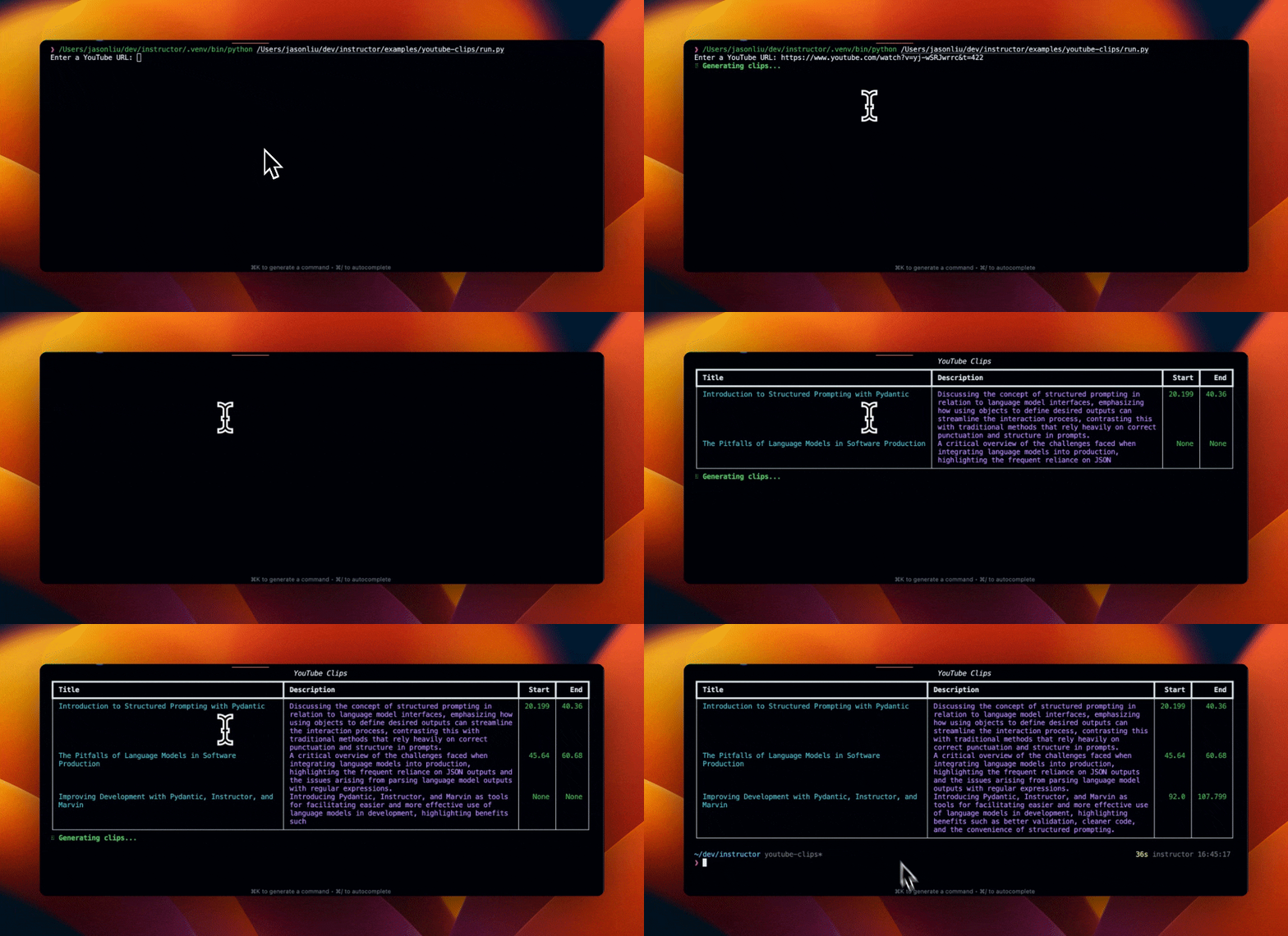
As always, the code is readily available in our examples/youtube folder in our repo for your reference in the run.py file.

In this post, we'll show you how to summarise Youtube video transcripts into distinct chapters using instructor before exploring some ways you can adapt the code to different applications.

By the end of this article, you'll be able to build an application as per the video below.

Why Instructor is the best way to get JSON from LLMs

Large Language Models (LLMs) like GPT are incredibly powerful, but getting them to return well-formatted JSON can be challenging. This is where the Instructor library shines. Instructor allows you to easily map LLM outputs to JSON data using Python type annotations and Pydantic models.

Instructor makes it easy to get structured data like JSON from LLMs like GPT-3.5, GPT-4, GPT-4-Vision, and open-source models including Mistral/Mixtral, Anyscale, Ollama, and llama-cpp-python.

It stands out for its simplicity, transparency, and user-centric design, built on top of Pydantic. Instructor helps you manage validation context, retries with Tenacity, and streaming Lists and Partial responses.

The Simple Patch for JSON LLM Outputs

Instructor works as a lightweight patch over the OpenAI Python SDK. To use it, you simply apply the patch to your OpenAI client:

import instructor
import openai

client = instructor.from_openai(openai.OpenAI())

Then, you can pass a response_model parameter to the completions.create or chat.completions.create methods. This parameter takes in a Pydantic model class that defines the JSON structure you want the LLM output mapped to. Just like response_model when using FastAPI.

Here's an example of a response_model for a simple user profile:

from pydantic import BaseModel

class User(BaseModel):
    name: str
    age: int
    email: str

client = instructor.from_openai(openai.OpenAI())

user = client.chat.completions.create(
    model="gpt-3.5-turbo",
    response_model=User,
    messages=[
        {
            "role": "user",
            "content": "Extract the user's name, age, and email from this: John Doe is 25 years old. His email is john@example.com"
        }
    ]
)

print(user.model_dump())
# > { 
#     "name": "John Doe",
#     "age": 25,
#     "email": "john@example.com"
#   }

Instructor extracts the JSON data from the LLM output and returns an instance of your specified Pydantic model. You can then use the model_dump() method to serialize the model instance to a JSON string.

Some key benefits of Instructor:

  • Zero new syntax to learn - it builds on standard Python type hints
  • Seamless integration with existing OpenAI SDK code
  • Incremental, zero-overhead adoption path
  • Direct access to the messages parameter for flexible prompt engineering
  • Broad compatibility with any OpenAI SDK-compatible platform or provider

Pydantic: More Powerful than Plain Dictionaries

You might be wondering, why use Pydantic models instead of just returning a dictionary of key-value pairs? While a dictionary could hold JSON data, Pydantic models provide several powerful advantages:

  1. Type validation: Pydantic models enforce the types of the fields. If the LLM returns an incorrect type (e.g. a string for an int field), it will raise a validation error.

  2. Field requirements: You can mark fields as required or optional. Pydantic will raise an error if a required field is missing.

  3. Default values: You can specify default values for fields that aren't always present.

  4. Advanced types: Pydantic supports more advanced field types like dates, UUIDs, URLs, lists, nested models, and more.

  5. Serialization: Pydantic models can be easily serialized to JSON, which is helpful for saving results or passing them to other systems.

  6. IDE support: Because Pydantic models are defined as classes, IDEs can provide autocompletion, type checking, and other helpful features when working with the JSON data.

So while dictionaries can work for very simple JSON structures, Pydantic models are far more powerful for working with complex, validated JSON in a maintainable way.

JSON from LLMs Made Easy

Instructor and Pydantic together provide a fantastic way to extract and work with JSON data from LLMs. The lightweight patching of Instructor combined with the powerful validation and typing of Pydantic models makes it easy to integrate JSON outputs into your LLM-powered applications. Give Instructor a try and see how much easier it makes getting JSON from LLMs!

Enhancing RAG with Time Filters Using Instructor

Retrieval-augmented generation (RAG) systems often need to handle queries with time-based constraints, like "What new features were released last quarter?" or "Show me support tickets from the past week." Effective time filtering is crucial for providing accurate, relevant responses.

Instructor is a Python library that simplifies integrating large language models (LLMs) with data sources and APIs. It allows defining structured output models using Pydantic, which can be used as prompts or to parse LLM outputs.

Modeling Time Filters

To handle time filters, we can define a Pydantic model representing a time range:

from datetime import datetime
from typing import Optional
from pydantic import BaseModel

class TimeFilter(BaseModel):
    start_date: Optional[datetime] = None
    end_date: Optional[datetime] = None

The TimeFilter model can represent an absolute date range or a relative time range like "last week" or "previous month."

We can then combine this with a search query string:

class SearchQuery(BaseModel):
    query: str
    time_filter: TimeFilter

Prompting the LLM

Using Instructor, we can prompt the LLM to generate a SearchQuery object based on the user's query:

import instructor
from openai import OpenAI

client = instructor.from_openai(OpenAI())

response = client.chat.completions.create(
    model="gpt-4o",
    response_model=SearchQuery,
    messages=[
        {
            "role": "system", 
            "content": "You are a query generator for customer support tickets. The current date is 2024-02-17"},
        {
            "role": "user", 
            "content": "Show me customer support tickets opened in the past week."
        },
    ],
)

{
    "query": "Show me customer support tickets opened in the past week.",
    "time_filter": {
        "start_date": "2024-02-10T00:00:00",
        "end_date": "2024-02-17T00:00:00"
    }
}

Nuances in dates and timezones

When working with time-based queries, it's important to consider the nuances of dates, timezones, and publication times. Depending on the data source, the user's location, and when the content was originally published, the definition of "past week" or "last month" may vary.

To handle this, you'll want to design your TimeFilter model to intelligently reason about these relative time periods. This could involve:

  • Defaulting to the user's local timezone if available, or using a consistent default like UTC
  • Defining clear rules for how to calculate the start and end of relative periods like "week" or "month"
  • e.g. does "past week" mean the last 7 days or the previous Sunday-Saturday range?
  • Allowing for flexibility in how users specify dates (exact datetimes, just dates, natural language phrases)
  • Validating and normalizing user input to fit the expected TimeFilter format
  • Considering the original publication timestamp of the content, not just the current date
  • e.g. "articles published in the last month" should look at the publish date, not the query date

By building this logic into the TimeFilter model, you can abstract away the complexity and provide a consistent interface for the rest of your RAG system to work with standardized absolute datetime ranges

Of course, there may be edge cases or ambiguities that are hard to resolve programmatically. In these situations, you may need to prompt the user for clarification or make a best guess based on the available information. The key is to strive for a balance of flexibility and consistency in how you handle time-based queries, factoring in publication dates when relevant.

By modeling time filters with Pydantic and leveraging Instructor, RAG systems can effectively handle time-based queries. Clear prompts, careful model design, and appropriate parsing strategies enable accurate retrieval of information within specific time frames, enhancing the system's overall relevance and accuracy.

Why Logfire is a perfect fit for FastAPI + Instructor

Logfire is a new tool that provides key insight into your application with Open Telemtry. Instead of using ad-hoc print statements, Logfire helps to profile every part of your application and is integrated directly into Pydantic and FastAPI, two popular libraries amongst Instructor users.

In short, this is the secret sauce to help you get your application to the finish line and beyond. We'll show you how to easily integrate Logfire into FastAPI, one of the most popular choices amongst users of Instructor using two examples

  1. Data Extraction from a single User Query
  2. Using asyncio to process multiple users in parallel
  3. Streaming multiple objects using an Iterable so that they're avaliable on demand

Logfire

Introduction

Logfire is a new observability platform coming from the creators of Pydantic. It integrates almost seamlessly with many of your favourite libraries such as Pydantic, HTTPx and Instructor. In this article, we'll show you how to use Logfire with Instructor to gain visibility into the performance of your entire application.

We'll walk through the following examples

  1. Classifying scam emails using Instructor
  2. Performing simple validation using the llm_validator
  3. Extracting data into a markdown table from an infographic with GPT4V